
View Team Members
1️⃣ Go to the Team tab
From the Home page, select the Team tab.
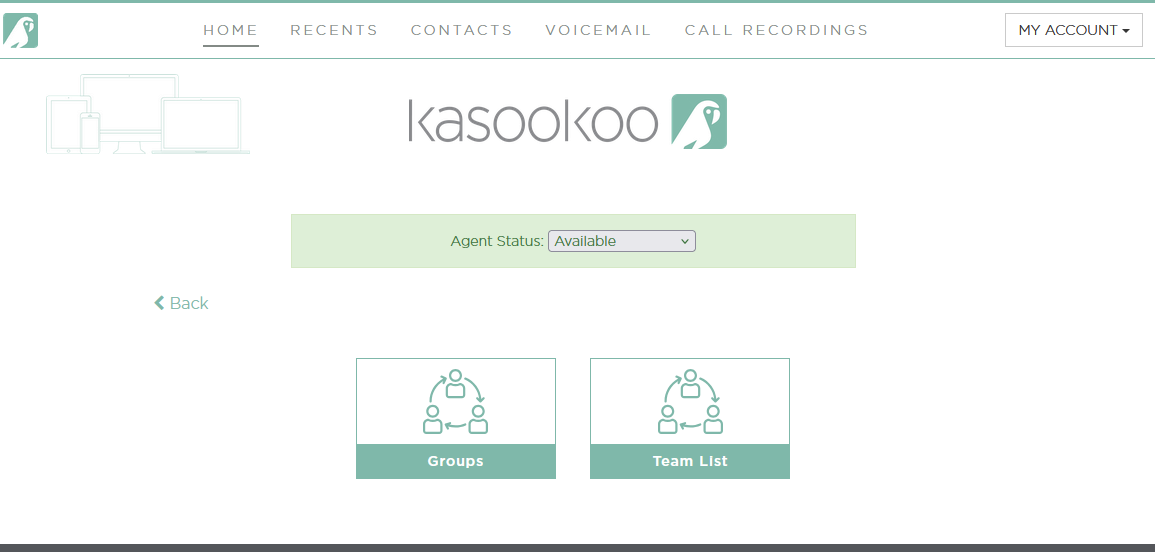
2️⃣ Choose how to view your team
At the top, you’ll see two tabs:
Team List — View all members of your team in one place.
Groups — View members organized by assigned groups (e.g., Sales, Support, Admin).
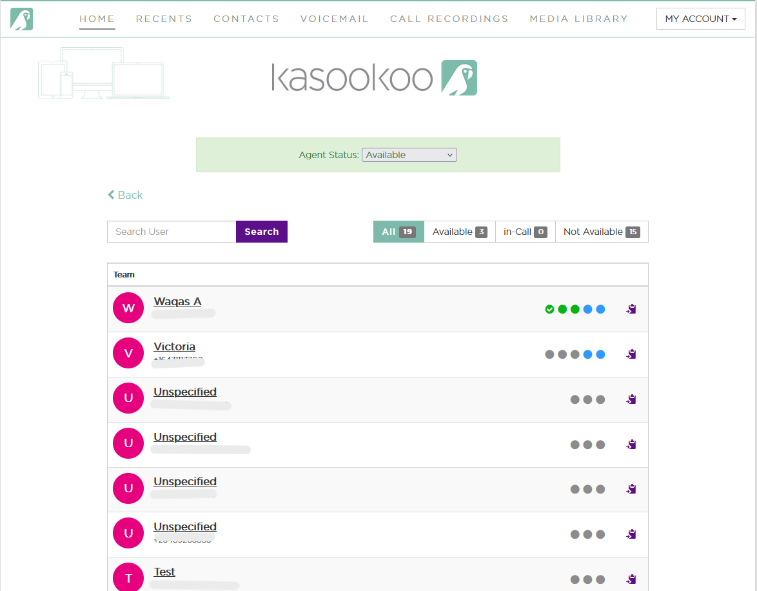
3️⃣ Understand the status indicators
Next to each team member, you’ll see a series of circles indicating their status:
- 🔵 User Status (1st Circle)
🟢 Green: Available for communication
🟠 Orange: Away/temporarily unavailable
🔴 Red: Busy / Do Not Disturb
⚪ Grey: App not registered; limited functionality
- 📞 In-Call Status (2nd Circle)
🟢 Green: Not on a call
🔴 Red: Currently on a call
- ✅ App Registered Status (3rd Circle)
🟢 Green: App registered, full functionality
⚪ Grey: App not registered, verification needed
- 🔗 CRM Integration Status (4th Circle) (if enabled)
🔵 Blue: CRM integration activated
- 📍 CRM Check-in Status (5th Circle) (if enabled)
🔵 Blue: User has checked in
⚪ Grey: User has not checked in
Updated about 1 year ago