
Set Departments
1️⃣ Navigate to “Incoming Call Settings”
From your dashboard, go to:
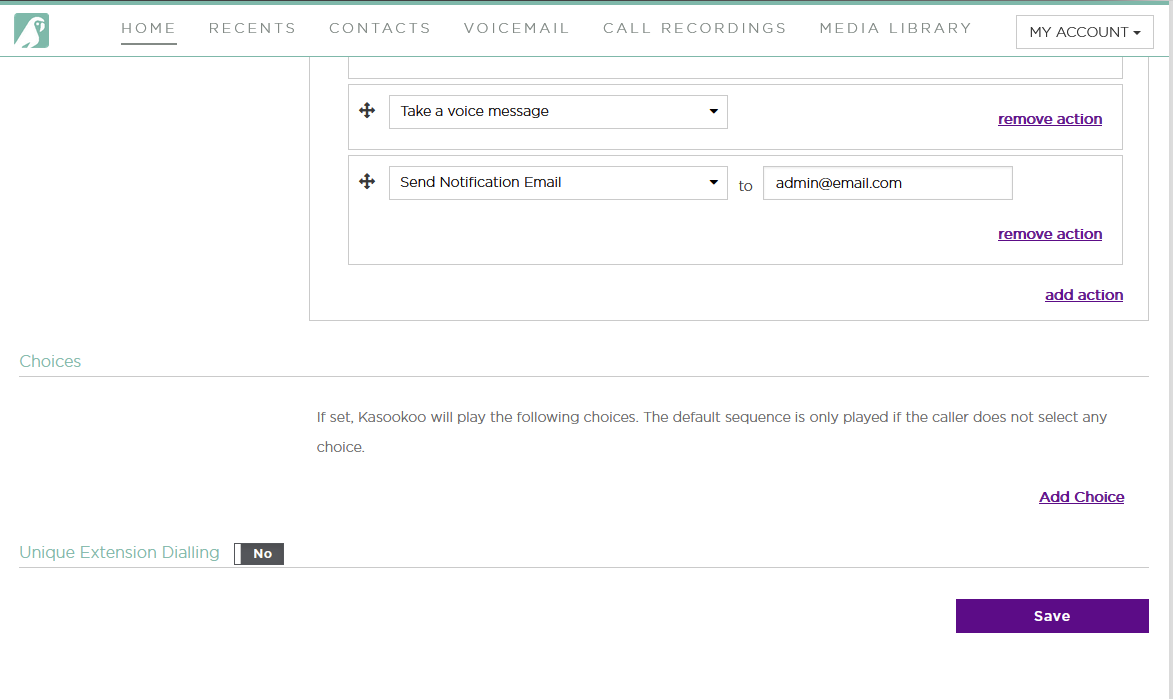
2️⃣ Scroll Below the “Default Sequence” Section
3️⃣ Click “Add Choice”
This is where you define IVR options that the caller will hear.
🗂️ Department Name: Enter a clear department name (e.g., Sales, Support)
🔢 Assign a Digit: Choose a number (e.g., 1, 2) that callers will press to reach this department
4️⃣ Add Agents to the Department Queue
Choose which team members will handle calls for this department.
✅ This follows the same default sequence format (Ring All, Ring in Order, etc.)
5️⃣ ✅ Click “Save”
Once all choices and agent queues are configured, click Save to apply your IVR setup.
Your IVR will now respond to callers with something like:
📞 “For Sales, press 1. For Support, press 2…”
Updated about 1 year ago