
Extensions
Extensions define the necessary information for an endpoint, such as a hard phone, soft phone, or other devices, to connect to the SIP server. The extension serves as the SIP username, and the password is the secret used for authentication. The domain name system (DNS) locates the server to register with and determines the realm, which specifies the domain the endpoint is registering to.
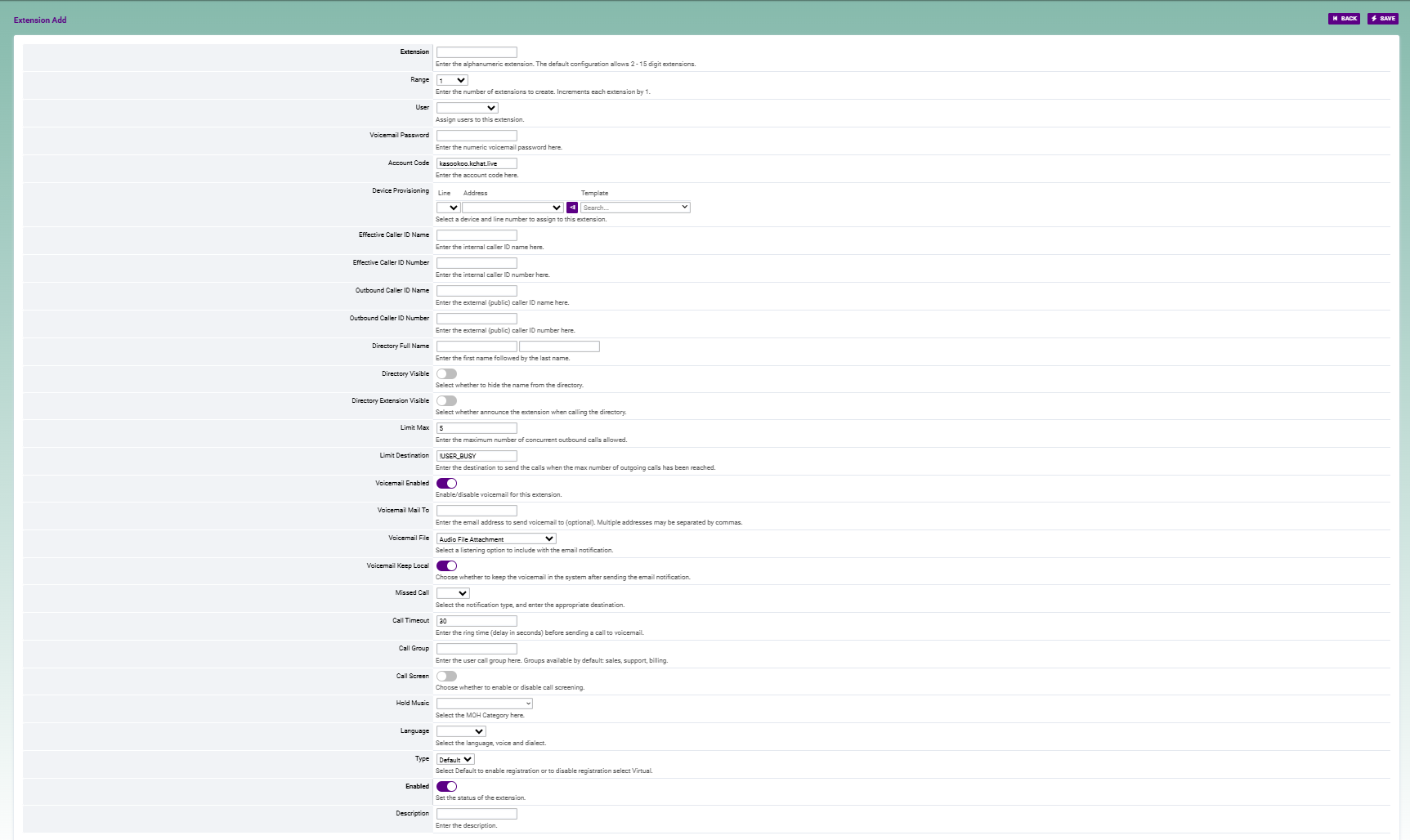
Basic Settings
Overview
Extension
Accepts alphanumeric values for the extension. The default configuration allows for 2–7 digit extensions. Alphanumeric extensions combine letters and numbers, providing flexibility for various use cases. They can help identify departments or roles, such as SALES1 or SUPPORT2, and personalize extensions for employees, like JOHN1 or SARAH2.
Range
This option is only visible when creating an extension and allows for you to create a block of extensions at once. Enter the number of extensions to create, with each subsequent extension incrementing by 1.
Voicemail Password
Enter the numeric voicemail password here.
Account Code
Used with billing systems. If you don’t have a billing system, this field is optional.
Effective Caller ID Name
The internal caller ID name that will be displayed on other internal phones when receiving a call from this extention.
Effective Caller ID Number
The internal caller ID number, typically set to the extension number. This number will be displayed on other internal phones when receiving a call from this extension.
Outbound Caller ID Name
Used by the outbound route for the external caller ID name. Typically, the business or organization name is set here.
Note
Your SIP provider may or may not allow this name to be transmitted to the receiving party.
Outbound Caller ID Number
Used by the outbound route for external caller ID number. Typically, the business or organization number is set here.
Emergency Caller ID Name
This is used when calling emergency services, like 911.
Emergency Caller ID Number
This is used when calling emergency services, like 911.
Directory Full Name
The first and last name used to populate the directory. You can access the directory by dialing *411.
Directory Visible
This setting determines whether the extension number will be hidden or visable to the directory.
Directory Extension Visible
This setting determines whether the extension number will be announced to the caller when searching for a user in the directory.
Max registrations
Set the maxium number of registrations for this user.
Limit Max
Set the maximum number of outgoing calls for this user.
Limit Destination
Set the destination for calls when the maximum number of outgoing calls have been reached. The default setting is !USER_BUSY.
Voicemail Enabled
Enable or disable voicemail for this extension.
Voicemail Mail To
The email address for sending voicemail notifications. Multiple email addresses can be entered, separated by commas.
Voicemail File
Select whether to send the voicemail as an attachment (wav file) or as a link in the email.
Voicemail Keep Local
Choose whether to keep the voicemail in the system after sending the email notification. Selecting “false” will delete the voicemail after it is sent.
Missed Call
This option sends an email for each missed call. To enable this option, you must enter an email address.
Toll Allow
Enter the toll allow value here. (Examples: domestic,international,local) For example, if you set Toll Allow to “domestic,” the extension will only be allowed to make domestic calls, while calls to international or other restricted destinations would be blocked. You can create custom values such as “domestic,” “international,” or “local” depending on the dialing restrictions or rate plans you want to enforce for that extension.
Call Timeout
This setting defines the amount of time the system will wait while an extension rings before considering the call to be unanswered. This timeout is typically used to determine how long the system will attempt to connect a call to an extension before it moves on to the next step in the dial plan, such as going to voicemail or routing the call elsewhere.
Call Group
When a call is routed to a call group, it will be directed to all extensions within that group. This can be useful for handling calls that need to be answered by multiple people within the same department. For example, if you route calls to the “sales” group, all extensions assigned to the “sales” call group will ring when a call is directed to that group.
Call Screen
enables a feature where the system prompts the caller to identify themselves before the call is connected to the recipient. When this option is enabled, the caller is asked to state their name or provide an identifying message, which is then recorded. The recorded response is presented to the person receiving the call, allowing them to decide whether to accept or reject the call based on the caller’s identity. This feature can be particularly useful for businesses that want to screen calls and avoid unwanted or unknown callers.
Record
The Record setting determines whether calls made to or from a specific extension should be recorded. You can configure it to record: - Local calls: Calls made internally between extensions. - Inbound calls: Calls received from external sources. - Outbound calls: Calls placed to external destinations. - All calls: A setting that records every call, regardless of whether it’s inbound, outbound, or local.
This feature is useful for tracking, monitoring, or maintaining records of conversations for compliance, quality assurance, or other purposes. The recording typically results in audio files stored in the system, which can be accessed or managed as needed.
Hold Music
This setting allows you to select the music or ringtone that will be played to callers who are placed on hold by this extension. This feature helps enhance the caller experience by providing audio while they wait, preventing silence and creating a more professional impression.
You can choose from a variety of pre-uploaded music tracks or ring tones, or you may upload custom audio files to be used as hold music. This music plays during call hold periods until the call is resumed by the extension user or transferred to another destination.
Language
The Language setting allows you to select the preferred language, voice, and dialect for the extension. This setting impacts various aspects of the system, such as voicemail prompts, IVR (Interactive Voice Response) menus, and other voice-related features.
Type
This setting determines the registration method for an extension or device.
Default: This option enables registration for the extension, meaning it allows the device (e.g., hard phone, soft phone) to register with the SIP server, making it active and able to send/receive calls.
Virtual: This option disables registration and creates a virtual extension, which does not require a physical device to register. This can be useful for extensions that don’t need to be tied to a specific device, such as for voicemail, call forwarding, or other non-registered use cases.
In summary, Default is used for regular extensions that need SIP registration, while Virtual is used for extensions that don’t require direct device registration but may still perform other functions.
Domain
This setting refers to the domain name or IP address associated with the SIP server or PBX system. This setting is used to identify and route calls for a particular domain within the system.
When you select a domain, it determines which domain the extension or device is registering with, and it is crucial for routing calls within multi-domain environments.
Context
The Context setting in FusionPBX defines the logical grouping or scope of call processing for a specific extension or device. It determines which set of rules or configurations should be applied to the calls coming from or going to that extension.
By default, the Context is set to match the domain name or IP address of the system. This means that calls associated with that domain or IP will use the default set of rules defined for that domain context.
Enabled
This setting determines whether a specific extension is active or inactive. When set to Enabled, the extension is active and can make or receive calls, register with the SIP server, and function normally within the system. When set to Disabled, the extension is inactive. It will not be able to make or receive calls, and it will not register with the SIP server. This is useful when temporarily deactivating an extension without deleting it from the system.
This setting allows administrators to quickly disable an extension without losing its configuration, which can be useful for maintenance, testing, or temporarily removing access for a user.
Description
This setting allows you to add a custom label or note to an extension. This is typically used for identifying the extension’s purpose or the person associated with it.
For example, you might use this field to provide details such as:
The name of the person using the extension (e.g., “John Doe’s Desk Phone”).
The department or role the extension serves (e.g., “Sales Team Extension”).
Special instructions or notes about the extension.
The Description is helpful for administrators to manage and quickly identify extensions, especially in larger systems with many extensions. It does not affect the functionality of the extension itself; it’s purely for organizational purposes.
Updated 4 days ago